OverDrive's Libby Icon

OverDrive/Libby Partners

How to access our OverDrive partner libraries in Libby​

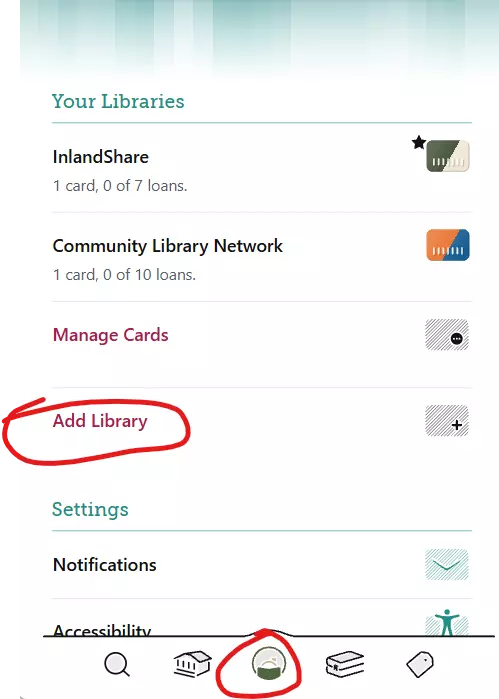
In Libby, you go to your profile and select “Add Library”

Screenshot of Libby's "Add Library" link.

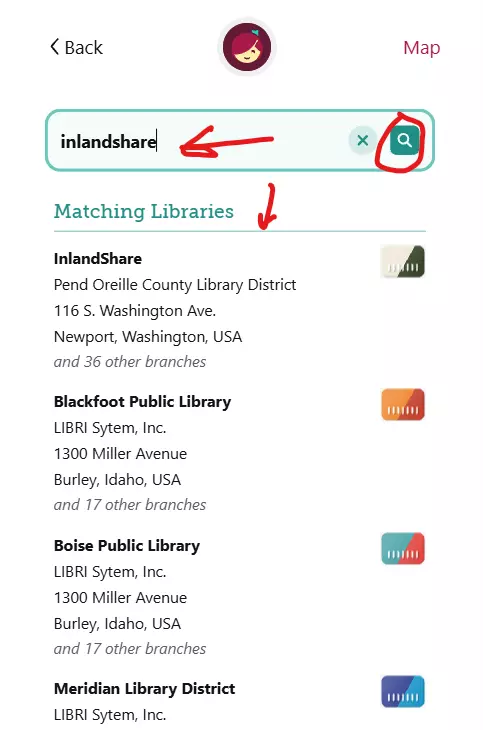
Search for “InlandShare”.  Any of the libraries listed below your search will be partner libraries.

Screenshot of Libby's matching libraries.

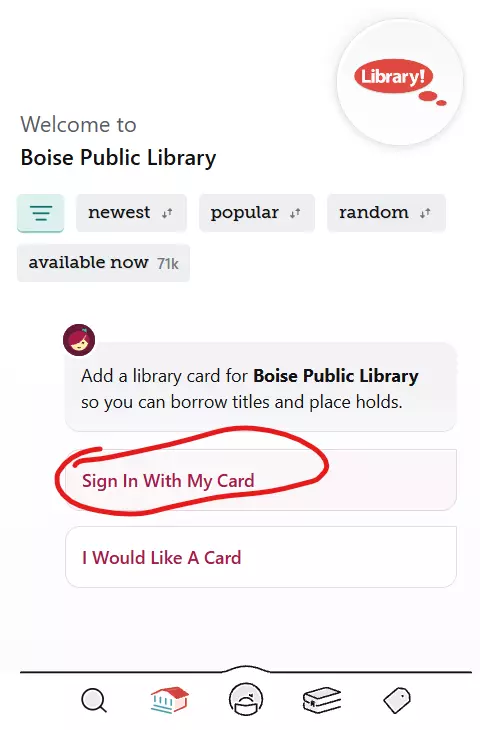
After selecting a library, tap “Sign in with my card”

Screenshot of Libby's "Sign in with My Card" link.

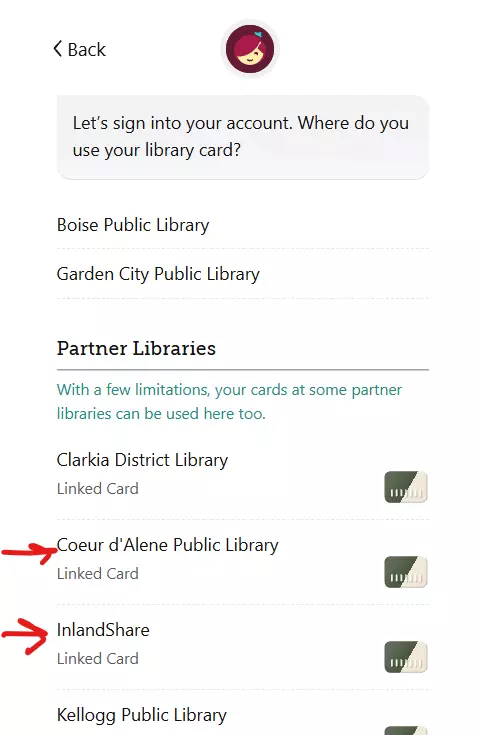
If your local library is a partner with this library, it will show up under the PARTNER LIBRARIES. Click on InlandShare or your library.

Screenshot of Libby with your library listed to select.

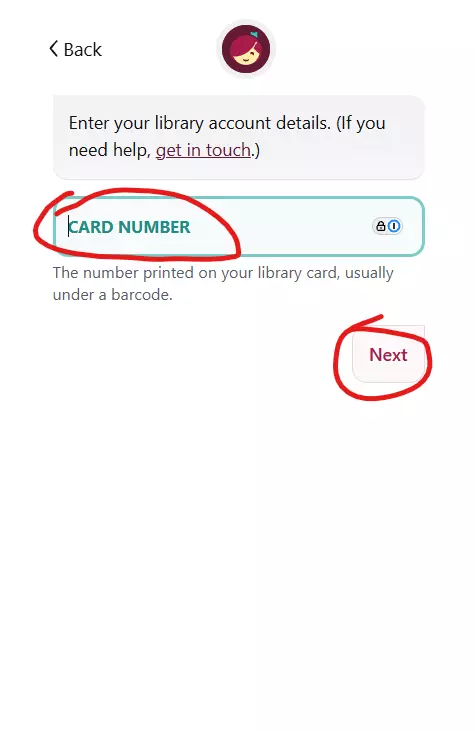
Enter your InlandShare card number and click Next.

Screenshot of Libby's "Card Number" textbox.

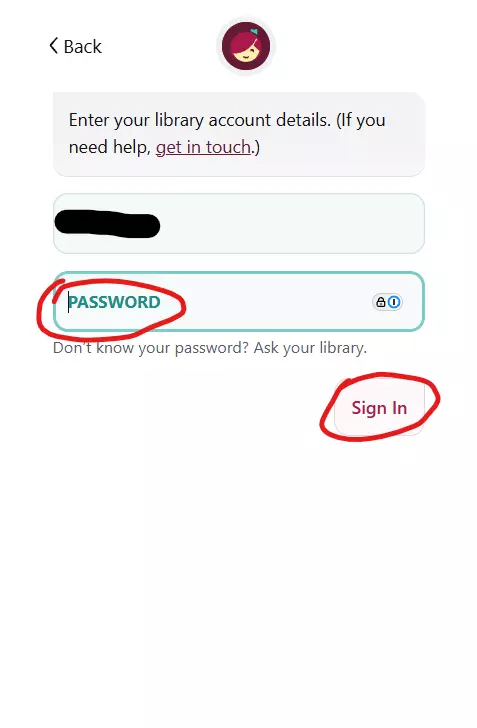
Enter your password and click Sign In.

If you do not remember your password, contact your local library.

Screenshot of Libby's password textbox.

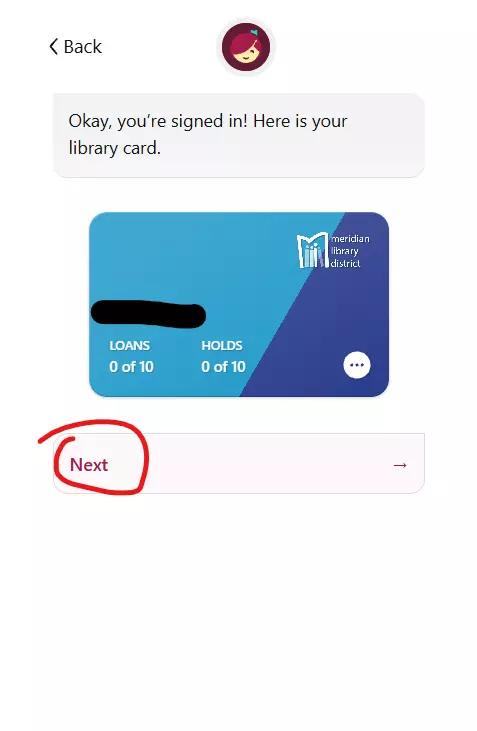
Once you are signed in, click Next.

That’s it!  You can now browse their Libby collection!

You can change between collections at any time by clicking on the Libby Icon at the bottom middle of the screen and selecting the collection you wish to browse.


Screenshot of Libby's library card confirmation.
The owner of this website has made a commitment to accessibility and inclusion, please report any problems that you encounter using the contact form on this website. This site uses the WP ADA Compliance Check plugin to enhance accessibility.